Video editing is evolving fast, and staying ahead means using the latest techniques to grab attention and boost engagement. Here are 10 must-try editing styles for your next video:
- Liquid Transitions: Smooth, dynamic scene changes.
- AI Color Grading: Professional color adjustments made easy.
- Moving Text Effects: Eye-catching kinetic typography.
- 3D Elements: Add depth and realism to your visuals.
- Digital Glitch Effects: Creative disruptions for dramatic impact.
- Loop Transitions: Seamless flow between clips.
- AR Video Effects: Blend real-world and digital visuals.
- Motion Typography: Advanced animated text for storytelling.
- Speed Ramping: Highlight action with slow or fast motion.
- Multi-Screen Layouts: Show multiple perspectives at once.
Quick Comparison of Tools
| Style | Best Tool(s) | Skill Level | Cost |
|---|---|---|---|
| Liquid Transitions | FlexClip, After Effects | Beginner/Pro | Free to $29.99/mo |
| AI Color Grading | DaVinci Resolve, ColorDirector | Beginner/Pro | Free to $20.99/mo |
| Moving Text Effects | VEED.IO, Clipchamp | Beginner | Free to Premium |
| 3D Elements | Unreal Engine, Mixamo | Beginner/Pro | Free |
| Digital Glitch Effects | PowerDirector, VEED.IO | Beginner/Pro | Free to $99.99/yr |
| Loop Transitions | VEED.IO, Descript | Beginner | Free to Subscription |
| AR Video Effects | Adobe Aero, Banuba SDK | Beginner/Pro | Free to Custom |
| Motion Typography | Filmora, After Effects | Beginner/Pro | Free to $29.99/mo |
| Speed Ramping | Premiere Pro, Filmora | Beginner/Pro | Free to $29.99/mo |
| Multi-Screen Layouts | Premiere Pro, Movavi | Beginner/Pro | Free to $165.95/yr |
With these styles, you’ll create videos that not only keep viewers hooked but also encourage shares and build your brand identity. Ready to dive in? Let’s explore these editing techniques in detail.
Related video from YouTube
1. Liquid Transitions
Liquid transitions bring a sleek and dynamic flow to your video edits, making scene changes visually engaging and professional.
In March 2023, FlexClip (version 2.5) introduced over a dozen pre-designed liquid transitions like liquid fly, flow splash, and splash split. These updates led to 20,000 daily uses and increased engagement by 45% .
Top Tools for Liquid Transitions
| Tool | Best For | Starting Price | Key Feature |
|---|---|---|---|
| FlexClip | Beginners | Free | Pre-made liquid transitions |
| Adobe After Effects | Professionals | Subscription-based | Advanced customization |
| Motion Array | Templates | $29.99/month | Ready-to-use effects |
| Envato Elements | Asset Library | $16.50/month | Extensive transition packs |
Tips to Enhance Liquid Transitions
- Align with your brand: Adjust transition colors to match your visual style.
- Perfect the timing: Set the transition speed to keep viewers engaged.
- Add sound effects: Use splash or bubble sounds for an immersive touch.
“For beginners and content creators with limited time, FlexClip’s customizable liquid transitions and royalty-free liquid transition SFX will make your edits 10x faster and much easier.” – Frank, Copywriter at FlexClip
For simple projects, tools like FlexClip are ideal. For more advanced needs, combining Adobe After Effects with premium transition packs can help create effects tailored to your vision.
2. AI Color Grading Tools
AI-driven color grading has made professional-level color adjustments more accessible than ever. These tools offer advanced yet easy-to-use features, helping creators achieve consistent and visually striking results.
Leading AI Color Grading Solutions
| Software | Best For | Key Features | Starting Price |
|---|---|---|---|
| ColorDirector | Beginners | Manual & automatic adjustments, instant color match tool | Free trial available |
| DaVinci Resolve | Professionals | Auto-balancing, primary & secondary grading | Free version |
| Adobe Premiere Pro | Studios | Lumetri Color panel | $20.99/month |
| UniFab | Quick Results | 4K upscaling, HDR adjustments | Free trial (up to 5 videos) |
For professional colorists, Colourlab AI is a standout option. Documentary editor Jamie LeJeune highlights its capabilities:
“Colourlab is designed to help us transform digital video using the aesthetic genius that was built into traditional film processing. Colourlab is perfect for documentaries.”
How to Choose the Right Tool
When selecting a color grading tool, consider your skill level and the demands of your project. ColorDirector is ideal for beginners thanks to its simple interface and automated features. On the other hand, experienced editors often prefer DaVinci Resolve for its extensive toolset, even if it requires more expertise to master.
For creators working across platforms, Vidio.ai is worth exploring. It has powered over 200,000 edits and integrates seamlessly with popular software like Adobe Premiere Pro and Final Cut Pro, saving users countless hours .
Professional Tips for AI Color Grading
- Start with auto-balance to establish a neutral base.
- Use AI matching tools to ensure consistency across scenes.
- Refine AI-generated adjustments manually for greater precision.
- Export in high quality to retain the improved color details.
Roberto Negron, Head of Post-Production, shares his insights:
“Colourlab allows me to focus my time on what really makes the difference in an image. Balancing and matching has been taken care of.”
3. Moving Text Effects
Moving text effects, also known as kinetic typography, are a powerful way to grab attention and emphasize your message. By combining design and technical skills, you can create visuals that truly stand out.
Popular Tools and Their Features
| Tool | Features | Ideal For | Starting Price |
|---|---|---|---|
| VEED.IO | Easy-to-use interface, automatic subtitles | Social media videos | Free version |
| Clipchamp | Customizable titles, AI-generated captions | Quick and simple edits | Free version |
| Mango Animate | Pre-made assets, smooth transitions | Professional presentations | $67 one-time |
Tips for Professional Results
“VEED has been game-changing. It’s allowed us to create gorgeous content for social promotion and ad units with ease.” – Max Alter, NBCUniversal’s Director of Audience Development
- Choose the right font: Pick fonts that match your brand while staying easy to read.
- Time your animations: Sync text movements with audio or scene changes for a polished look.
- Keep text minimal: Stick to 2-3 lines of text at a time to avoid cluttering the screen.
- Use motion blur: This creates smoother transitions and more natural movement.
Once you’ve mastered these, you’ll be ready to explore more advanced animation techniques.
Real-World Example
The Wake County School District in North Carolina used kinetic text in a recruitment campaign for bus drivers. Their animated video attracted 565 applicants in just two months .
Advanced Animation Techniques
To create professional-grade text animations:
- Start with a neutral transform baseline.
- Use animation presets to maintain consistency.
- Combine multiple animators for complex effects.
- Apply Per-Character 3D properties to add depth and dimension.
“I love using VEED. The subtitles are the most accurate I’ve seen on the market. It’s helped take my content to the next level.” – Laura Haleydt, Brand Marketing Manager at Carlsberg Importers
4. 3D Elements in Videos
Incorporating three-dimensional elements into videos can grab attention and create eye-catching visuals. Research shows that content featuring 3D elements often performs better, with 82% of viewers actively engaging with this type of content .
Popular 3D Software Options
Here are some tools to help you get started with 3D elements:
| Software | Best For | Key Features | Pricing |
|---|---|---|---|
| Daz Studio | Beginners | Character creation, basic animation | Free |
| Unreal Engine | Advanced users | Real-time rendering, VFX | Free until $1M earnings |
| DeepMotion | Motion capture | AI-powered animation, real-time tracking | Free plan available |
| Mixamo | Adobe users | Character animation, rigging | Free with Creative Cloud |
Professional Integration Techniques
To integrate 3D elements effectively, follow these steps:
- Place tracking markers in key positions during filming.
- Check video clips to identify any color correction needs.
- Record lighting conditions to match them during post-production.
- Use software like PFTrack for camera tracking and scene analysis.
- Export tracking data into your chosen 3D software.
- Match lighting and color grading to create a realistic final product.
These steps are essential for blending 3D elements seamlessly into your video.
Impact on Viewer Engagement
Viewers tend to spend more time with videos that include 3D elements. On average, they engage for 20 seconds, while 34% interact for over 30 seconds. Additionally, 95% of viewers report finding 3D content more engaging than standard videos . When done right, 3D integration can significantly increase audience interaction.
Advanced Tips for Better Results
Once you’ve mastered the basics, refine your 3D effects for a polished look. Pay close attention to matching lighting between the virtual and real-world environments. If you’re using After Effects, experiment with light types like point lights, spotlights, and ambient lights to add depth and realism .
For inspiration, consider the techniques used in Life of Pi. The production team combined CGI backgrounds with live-action footage filmed in water tanks, achieving a seamless blend of real and digital elements .
Performance Considerations
To ensure smooth playback, prioritize efficient 3D implementation. Cloud-based solutions can stream 3D content directly to users, enabling quick loading times and delivering an engaging, interactive experience .
5. Digital Glitch Effects
Digital glitch effects mimic video signal disruptions to add a creative edge, create smooth transitions, or set a specific tone in your videos.
Top Tools for Creating Glitch Effects
| Software | Ideal For | Key Features | Rating |
|---|---|---|---|
| PowerDirector | All skill levels | Works on multiple platforms, YouTube integration | 10/10 |
| Veed.io | Beginners | Browser-based, includes 2GB free storage | 7/10 |
| PhotoMosh | GIF creation | 27 preset effects, web-based | 8/10 |
| VSDC | YouTube creators | 8 glitch presets, Windows-only | 7/10 |
Below, you’ll learn how to apply these effects using popular editing tools.
Creating Professional Glitch Effects
Use glitch effects thoughtfully. As Boris FX explains:
“When it comes to video effects, glitch effects are endorsed by video editors due to the many creative ways they can be presented, as there are no ‘rules’ as to how a glitch looks or how it should ‘behave’ when shown on screen” .
For a polished result, pair glitch visuals with matching sound effects to:
- Mark scene changes
- Build suspense
- Mimic technical issues
- Add a retro vibe
- Highlight dramatic moments
How to Create Glitch Effects
In Premiere Pro: Use the ‘VR Digital Glitch’ effect. Tweak settings like Color Distortion and Noise Strength. Animate features such as Master Amplitude, Scale, and Position for dynamic results .
Using VEED: Upload your video, navigate to the Effects tab, and choose Glitch. Adjust the intensity with the strength slider .
With Kapwing: Open the Transitions tab, select options like “Glitch Displace” or “Glitch Memories”, then export your final video .
Advanced Tips for Glitch Effects
- Timing: Keep the effect short and purposeful to avoid overuse.
- Intensity: Match the strength of the glitch to the mood of your content.
- Style: Ensure the glitches align with your overall video aesthetic.
- Color Play: Experiment with RGB splitting for added depth.
- Layering: Combine multiple glitch types for a distinctive look.
“Break the stillness that videos give sometimes. There’s no doubt that static or glitches on a screen draws everyone’s attention” .
When used effectively, glitch effects not only captivate viewers but also strengthen your visual branding.
sbb-itb-522d111
6. Loop Transitions
Loop transitions seamlessly connect the end of one clip with the start of another, creating a smooth flow that adds a polished touch to your video.
Tools for Loop Transitions
| Software | Features | Ideal For | Cost |
|---|---|---|---|
| VEED.IO | Web-based, GIF export | Beginners | Free (Premium removes watermark) |
| Descript | AI tools, multi-track editing | Intermediate users | Subscription |
| NewBlueFX Transitions 5 | 3D, light, color effects | Advanced users | $299 |
Having the right software makes crafting smooth transitions much easier.
How to Create Loop Transitions
With VEED.IO: This platform, rated 4.6/5 by 319 users, is a great starting point. Upload your clip, duplicate it by clicking the plus icon, and export as a GIF for endless looping.
With Descript: Descript simplifies the process with its AI tools. Phoebe O., a Freelance Writer & Content Developer, shares:
“Descript is an amazing timeline and text-based editor with some incredible features. I love the timeline editor and the ability to do multi-track editing very quickly” .
Key Technical Points
- Frame Overlap: Transitions merge frames from both clips, either by trimming or repeating frames.
- Timing: The transition point impacts both clips equally.
- Smoothness: Avoid abrupt cuts between similar shots.
- Duration: Keep transition lengths consistent throughout the video.
Pro Tips for Better Loops
What to Avoid:
- Overusing dissolves, which can dilute the effect.
- Adding overly dramatic effects like explosions or melting transitions.
- Breaking visual consistency between transitions.
What to Do:
- Sync movement and transitions with audio beats.
- Use colors that blend well for smoother transitions.
- Adapt transitions to suit the platform where the video will be shown.
Well-executed loop transitions enhance your video’s flow without distracting from the content.
7. AR Video Effects
AR effects are quickly becoming a major trend in digital editing, alongside liquid transitions and AI tools. With the AR market expected to hit $198 billion by 2025 and 3.5 billion mobile AR users anticipated this year, adding these effects can make your videos more engaging and interactive . They combine digital visuals with real-world elements, perfectly aligning with current editing trends.
Popular AR Tools and Their Features
| Software | Key Features | Best For | Price Point |
|---|---|---|---|
| Adobe Aero | Interactive AR authoring | Designers | Free with Adobe ID |
| ROAR Editor | No-code AR creation | Beginners | Custom pricing |
| Banuba SDK | Face masks, video effects | Developers | 14-day free trial |
These tools make it easier to add AR elements, helping you create immersive and visually appealing videos.
Professional AR Effects Examples
Instagram AR Highlights:
- Paige Piskin’s Super Mario Bros. mask featuring Mario-inspired visuals .
- Robbie Conceptual’s Notre-Dame AR effect showcasing the iconic cathedral .
Step-by-Step Implementation in Filmora
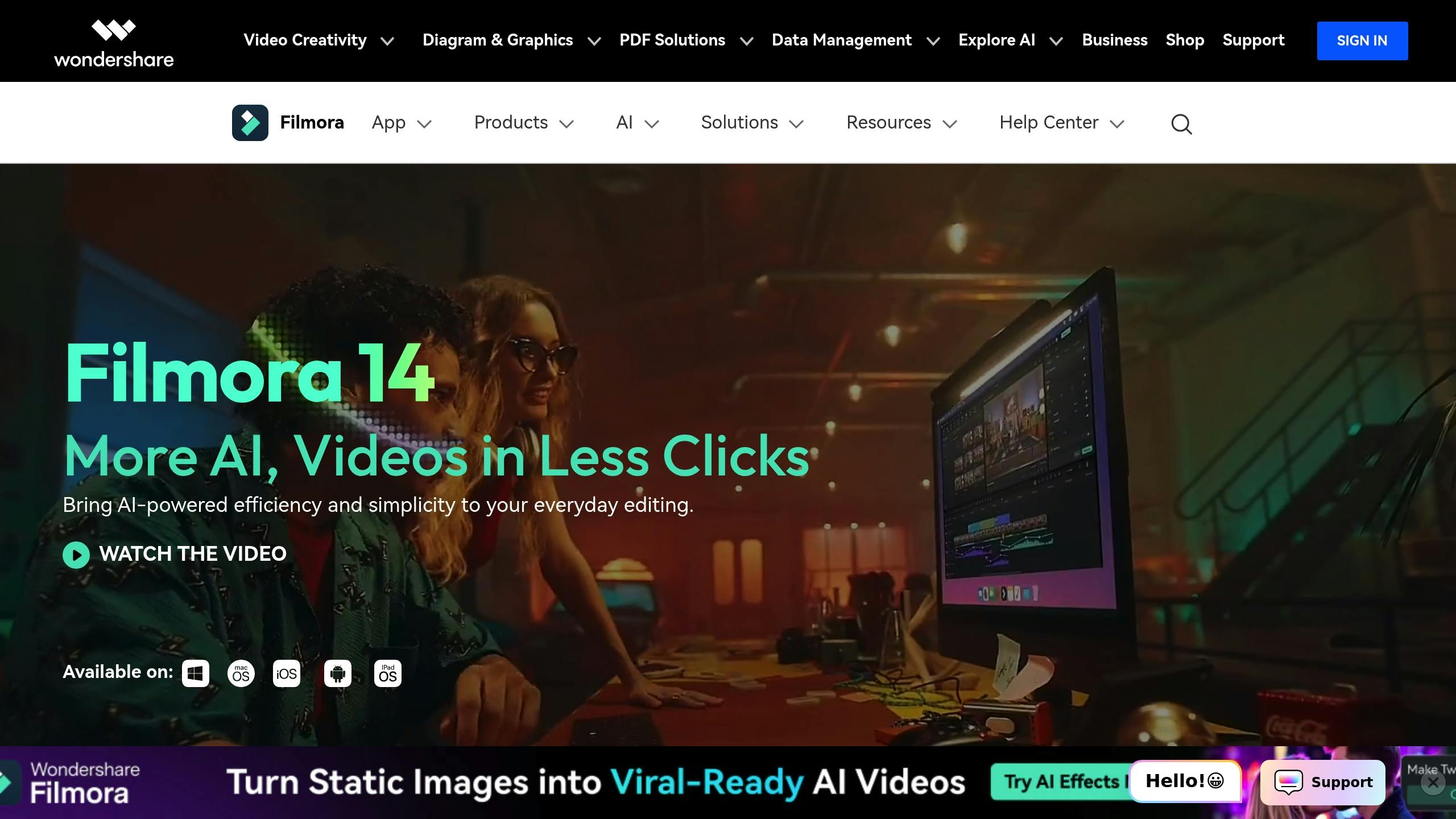
Filmora simplifies AR integration, making it accessible even for beginners. Here’s how you can get started:
- Access the Effects PanelOpen the Effects panel and navigate to Body Effects.
- Drag and drop your chosen effect into the project timeline.
- Customize the EffectDouble-click the effect on the timeline.
- Adjust its position, tracking settings, and preview the tracking accuracy.
- Fine-Tune the DurationModify the edges of the timeline to set the effect’s length.
- Remove any unnecessary effects.
- Ensure transitions are smooth for a polished look.
Pro Tips for AR Implementation
Technical Requirements:
- Mobile devices should run iOS 15.0+ or Android OS 6.0+ for optimal performance .
“Adobe Aero is the only all-in-one augmented reality (AR) authoring and viewing platform that makes it easier for designers and developers to design, collaborate, and publish interactive immersive experiences in the real world.” – Adobe
Success Story: Videoshop integrated Banuba’s Video Editor SDK, leading to stellar user ratings of 4.6/5 on PlayMarket and 4.9/5 on AppStore, with over 20 million downloads .
Best Practices
- Use consistent lighting to improve face tracking accuracy.
- Test effects with various face angles to ensure reliability.
- Keep AR elements subtle and aligned with your content’s theme.
- Match effects to the tone and purpose of your video.
- Consider the device capabilities of your audience to maximize engagement.
8. Motion Typography
Motion typography goes beyond simple moving text by incorporating advanced animation techniques like keyframing and 3D effects. This approach adds depth and creativity to storytelling, turning text into a powerful narrative tool. It’s not just about movement – it’s about crafting text animations that feel artistic and purposeful.
Top Software Options for Motion Typography
| Software | Best For | Key Features |
|---|---|---|
| Filmora | Beginners | Easy drag-and-drop interface, keyframe support |
| After Effects | Professionals | Advanced 3D tools, high-level editing features |
| Cavalry | Motion designers | Data-driven graphics, creative text effects |
| Alight Motion | Mobile creators | Motion graphics and effects for mobile editing |
Key Techniques for Motion Typography
- Select the Right Font
Use fonts that match the mood of your project while ensuring they stay readable, even over busy backgrounds. - Set Animation Parameters
Add keyframes for elements like position, opacity, and scale. Synchronize these movements with the flow of your video. - Incorporate Motion Effects
Experiment with rotations, scaling, and path animations. Use motion blur to create smoother transitions and a polished look.
Pro Tips for Better Results
- Keep text easy to read at all times.
- Use contrasting colors to make your text stand out.
- Avoid overcomplicating the animation – keep it purposeful.
- Test how the text looks at different playback speeds.
Advanced Features to Explore
- Animate individual characters in 3D for added depth.
- Use path-based animations for creative text movement.
- Experiment with custom motion presets.
- Adjust keyframe interpolation for smoother or more dynamic effects.
These features help elevate your work, making every frame more engaging and professional.
Expert Insight
“At Educational Voice, we believe kinetic typography should enhance learning, not hinder it. Our animations strike the perfect balance between artistic flair and functional clarity.”
Steps to Get Started
- Plan your animations with detailed storyboards.
- Test your designs at different playback speeds to ensure smoothness.
- Focus on seamless transitions between elements.
- Export your final project in formats optimized for your platform.
Motion typography transforms text into an interactive storytelling element, making your videos more engaging and aligned with today’s trends. Ready to take it further? Up next: how dynamic speed ramping can elevate your editing game.
9. Speed Ramping Sequences
Speed ramping adds energy and style to your footage by changing playback speeds. It lets you seamlessly shift between slow motion, normal speed, and fast motion within a single clip, creating a cinematic effect.
Tools You’ll Need for Speed Ramping
| Software | Key Features | Ideal For |
|---|---|---|
| Adobe Premiere Pro | Time remapping, precise keyframes | Professional editors |
| Filmora | Pre-built templates, pitch-stable audio | Beginners |
| Twixtor | Advanced motion estimation, fewer artifacts | High-end productions |
Key Speed Ramping Techniques
Three-Part Structure: Use the slow-fast-slow approach to build emotional and visual impact. Start with slow motion to build tension, speed up for action, and slow down again to emphasize key moments. Syncing these transitions with audio beats can make them even more engaging .
Audio Synchronization: Align speed changes with music or sound effects. Adjust audio levels to keep the sound quality intact during transitions .
Advanced Tips for Better Results
Frame Rate Matters: Shoot at higher frame rates (like 60-120 fps) to ensure smooth slow-motion scenes .
Keyframe Control: To adjust speed, press Ctrl+R (Windows) or Cmd+R (Mac) and set keyframes at transition points. Change speed percentages – 100% is normal speed – to create your desired effect .
Practical Uses of Speed Ramping
Speed ramping can elevate your storytelling across various content types. For example, Filmora’s templates make it easy to apply this technique in:
- Montages: Perfect for wedding or party highlights.
- Bullet Time: Great for capturing high-energy sports moments.
- Hero Moments: Ideal for dramatic character introductions.
- Flash Effects: Adds flair to travel vlogs or cooking tutorials .
“Speed ramping is a technique used to combine different speeds on the same clip… It gives that extra flavor to keep your audience excited and interested.” – Alexandra Marriott, MASV
Pro-Level Tips
Enhance with Color and Motion
- Add motion blur to fast sections for smoother transitions.
- Adjust color grading during speed changes to match the mood.
- Experiment with reverse speed ramps for creative effects .
Technical Tricks
- Use multiple speed ramps in one clip for a dynamic flow.
- Pair speed changes with sound effects to heighten impact.
- Smooth out transitions between ramped and normal speeds .
For drone footage, speed up less engaging parts and slow down at key scenes. In sports videos, slow motion during critical plays can spotlight the action .
10. Multi-Screen Layouts
Multi-screen layouts are a powerful way to present multiple perspectives in a single video, building on the effects and transitions discussed earlier.
Tools for Creating Multi-Screen Layouts
| Software | Price Range | Ideal For |
|---|---|---|
| Adobe Premiere Pro | $29.99/month | Advanced editing and customization |
| Movavi | Free – $165.95/year | Simple interface and fast results |
| DaVinci Resolve | Free | High-end production and color grading |
| Filmora | Free – $72.99/year | Beginners and template-based editing |
Techniques for Multi-Screen Layouts
Synchronized Storytelling
Align content across screens to create a cohesive narrative. Personalizing messages in this way can boost viewer engagement by up to 70% .
Smooth Transitions
Use tools like Adobe Premiere Pro’s multi-camera features or Filmora’s templates to create seamless transitions between screens.
Advanced Tips for Implementation
Optimizing Your Content:
- Adjust aspect ratios for each screen segment.
- Balance audio levels to ensure clarity across multiple sources.
- Focus on keeping each frame visually clear and purposeful.
- Match color schemes across screens for a harmonious look.
Professional Applications
Success Stories
Nike’s 2023 Instagram campaign effectively used split-screen storytelling by pairing athlete footage with product close-ups. This strategy increased engagement by 35% and sales by 20% (Source: lightninglikes.com).
Technical Priorities
When designing multi-screen layouts, consider:
- Screen resolution for optimal quality.
- Synchronizing playback for a seamless experience.
- Balancing visuals across screens.
- Clearly prioritizing key messages.
Creative Applications Across Genres
Documentary Style
Show multiple angles of the same event for a richer perspective, much like the film Timecode, which used four simultaneous frames to mimic a surveillance setup .
Product Demos
Highlight before-and-after shots or showcase different product features at the same time to engage viewers more effectively.
Interactive Content
Use audience analytics to tailor content based on viewer behavior and attention spans .
These methods add depth and complexity to your videos, complementing other editing styles.
Pro Tips for Success
Balancing Frames
Ensure each screen segment complements the others, avoiding visual competition that might confuse the viewer.
Managing Audio
- Focus on the primary audio from the main screen while using subtle background audio for secondary screens.
- Establish a clear hierarchy for audio elements.
- Use smooth transitions to maintain an engaging soundscape.
Conclusion
Mastering these 10 editing styles can take your video content to the next level.
Choosing the Right Tools
Here are some tools that suit different skill levels:
| Experience Level | Recommended Software | Cost | Best Features |
|---|---|---|---|
| Professional | DaVinci Resolve | Free version available | Advanced color grading, 8K support |
| Intermediate | CyberLink PowerDirector | $99.99/year | Fast rendering, modern effects |
| Beginner | Movavi Video Editor | $79.95 one-time | Easy-to-use interface, built-in templates |
Implementing New Techniques
Start small by focusing on one style at a time. For instance, try simple liquid transitions first before moving on to more complex multi-layer effects. This gradual approach helps you build confidence and skill.
Performance Optimization
While 4K editing is now common , advanced effects like AR and 3D can push lower-end systems to their limits. Choose effects that match your hardware capabilities and align with your audience’s expectations. Streamline your workflow to get the best results from your setup.
Professional Integration Tips
To work more efficiently, consider creating reusable project templates, setting up consistent color grading presets, and building a library of transitions. Documenting your workflow can also save time and improve consistency across projects.
Staying Ahead in the Field
Keep your skills sharp by staying updated on software changes, experimenting with new tools, connecting with other creators, and regularly backing up your work. These habits will help you stay competitive in the ever-changing digital space.
https://app.seobotai.com/banner/banner.js?id=67c08714cd608d64ca3e518d
 Buzzpathy
Leave a comment